 Iwashere
Chrome extension / local bookmarks
IWASHERE
One hotkey. One .webloc/.url link.
So you can get back there.
- Local bookmarks: save URLs as
.webloc/.urlfiles,
collected inDownloads/📍IWasHere/. - Very deep links (VDL): add a phrase-level reference with your selection.
Get back there—to the words you picked, highlighted where supported. - Special case: Etsy image + source. Save the main listing image beside its bookmark, when available. “This came from there.”
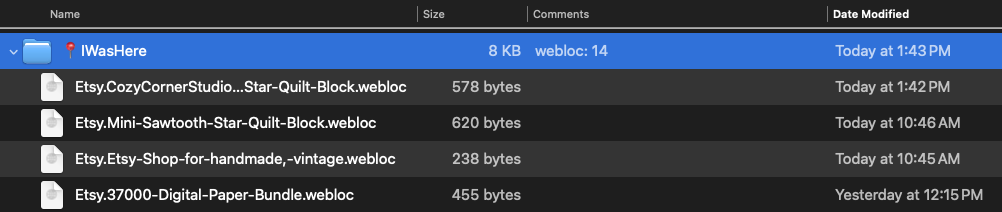
Browse your trail in Finder
macOSSelect a bookmark. Press Space to preview it with Quick Look.
Use the next/previous arrow keys to navigate between bookmarks.
Save the URL. Get back there.
- 01
Choose your shortcut
After installing, open
chrome://extensions/shortcutsand assign a key combination to Iwashere. No hotkey is assigned by default. Some combinations are unavailable; choose one Chrome accepts and test it. - 02
Save a bookmark
Press your assigned hotkey to save the current page URL. Iwashere creates a 📍IWasHere folder inside Downloads with the first save. You can also select text, then Control-click or right-click and choose IWasHere → Save URL; a readable selection adds a link to that passage.
- 03
Leave yourself breadcrumbs
Keep saving useful pages. The bookmark files accumulate in
/Downloads/📍IWasHere/. Open one to get back to its page. Keep the files together or move them into your own folders.
- macOS
.weblocbookmark files- Windows
.urlbookmark files
Filenames include the site and page title. Etsy links also include the shop name when available. Repeated names get unique filenames. This saves the URL, not an offline copy of the page.
Want to get back to a phrase?
VDL: We have fingers; we need to point.
Select the words you want to return to. Press your Iwashere hotkey, or Control-click / right-click and choose IWasHere → Save URL.
Iwashere saves a very deep link (VDL): the page link plus your selection. Open the bookmark to return to the passage, with the selected words highlighted where supported.
With no selection, your hotkey saves the ordinary page URL.
Selected-passage links are available in version 1.0.17. Highlighting depends on the browser and page; changed or repeated text can affect the match. PDF selections use a search link when available.
For the record: Jean Tantra first reduced to practice VDL in a Chrome extension in 2013. I have carried this torch a long time.
Fully functional nagware. Free to use.
All features are available free. There is no timed trial or expiry. A dismissible purchase reminder appears after your first successful save on a supported page, then every twentieth successful bookmark save. It stays for up to 8 seconds the first time and 6 seconds afterward; choose Not now to close it sooner.
Choose Buy to remove reminders. Buying adds no functionality. Choose Restore purchase if you have already paid. Payments are handled by ExtensionPay.
Get IWasHere in the Chrome Web StoreSupport
Help with saving and finding your local bookmarks.
Email Iwashere.support@metatheory.com. Include your Iwashere version, operating system, Chrome version, and a description of what happened.
Set up your hotkey
Open chrome://extensions/shortcuts and assign a shortcut to Iwashere. No shortcut is assigned by default. If a key combination is unavailable, choose another one. To save without a hotkey, select text on the page, then Control-click or right-click and choose IWasHere → Save URL. If text is selected and readable, Iwashere saves a very deep link (VDL) to that passage. With no readable selection, it saves the ordinary page URL.
Find your saved bookmarks
Look in Downloads/📍IWasHere/. The folder appears after your first successful save. On macOS, bookmarks are .webloc files; on Windows, they are .url files. Open a bookmark to return to its page.
If the selection is not highlighted
The bookmark still opens its page. Highlighting needs browser and page support, and the saved words must still be present. Try selecting a short, distinctive passage of visible page text. Browser-protected content and form fields may not expose a selection.
If a bookmark does not save
Try saving a regular website page. Browser settings pages and some protected pages cannot be saved. An OK badge confirms a successful save; a ! badge indicates a problem. Check Chrome’s Downloads list for a blocked or failed download.
Restore your purchase
If you have already paid and still see purchase reminders, choose Restore purchase in the upgrade prompt and follow the ExtensionPay instructions. Your existing bookmark files remain available.
Privacy & data
Your bookmark data stays local
Your saved bookmarks, page URLs, titles, and filenames stay on your device in Downloads/📍IWasHere/. Iwashere does not upload them to the developer or send them to ExtensionPay. With a very deep link, up to 512 characters of your selected passage are encoded in the saved URL. Sharing that bookmark also shares the excerpt in its URL. Iwashere does not send selected passages to the developer or ExtensionPay. You control your bookmark files and can delete them whenever you choose.
Email is used only for registration
If you provide an email address when registering, it is used only for registration. It is not used for marketing, sold, or shared for advertising.
Optional purchase
The extension stores its save count locally and checks payment status for purchase reminders. ExtensionPay handles registration and optional purchases; bookmark URLs and titles are not included in those checks.